How to Download the Template to Your Own Google Drive from sitesavant.com
Step 1: Choosing the Template
Since you are already on our platform, sitesavant.com, browse and select the template that best suits your needs.
Step 2: "Download this template" Button
Once you've found the template of your choice, click the button labeled "Download this template". This is not a conventional download — everything happens within Google's cloud.
Step 3: Accessing the Shared Folder

Upon pressing the button:
- If you're already logged into your Google account: A new window will open showing a shared Google Drive folder with the template you selected.
- If you're not logged into your Google account: You can view the shared folder and its files, but to copy the template you need to sign in. Attempting any action while logged out will show an "Unauthorized Error 401". Sign in with the account where you want to save the template.
Step 4: Making a Copy
Once inside the shared folder:
- In the top-right corner of the window, locate the button with 3 vertical dots.
- Click on that button.
- From the dropdown menu, select "Make a copy".
Step 5: Editing in Your Personal Google Drive
Now that you have your copy:
- Navigate to your personal Google Drive.
- Find the template you just copied.
- Click on it to start editing and customizing it.
By following these steps, you'll have any template from sitesavant.com in your Google Drive, ready to use on your new Google Site. If you have questions or need additional help, feel free to contact us.
Browse templates
-
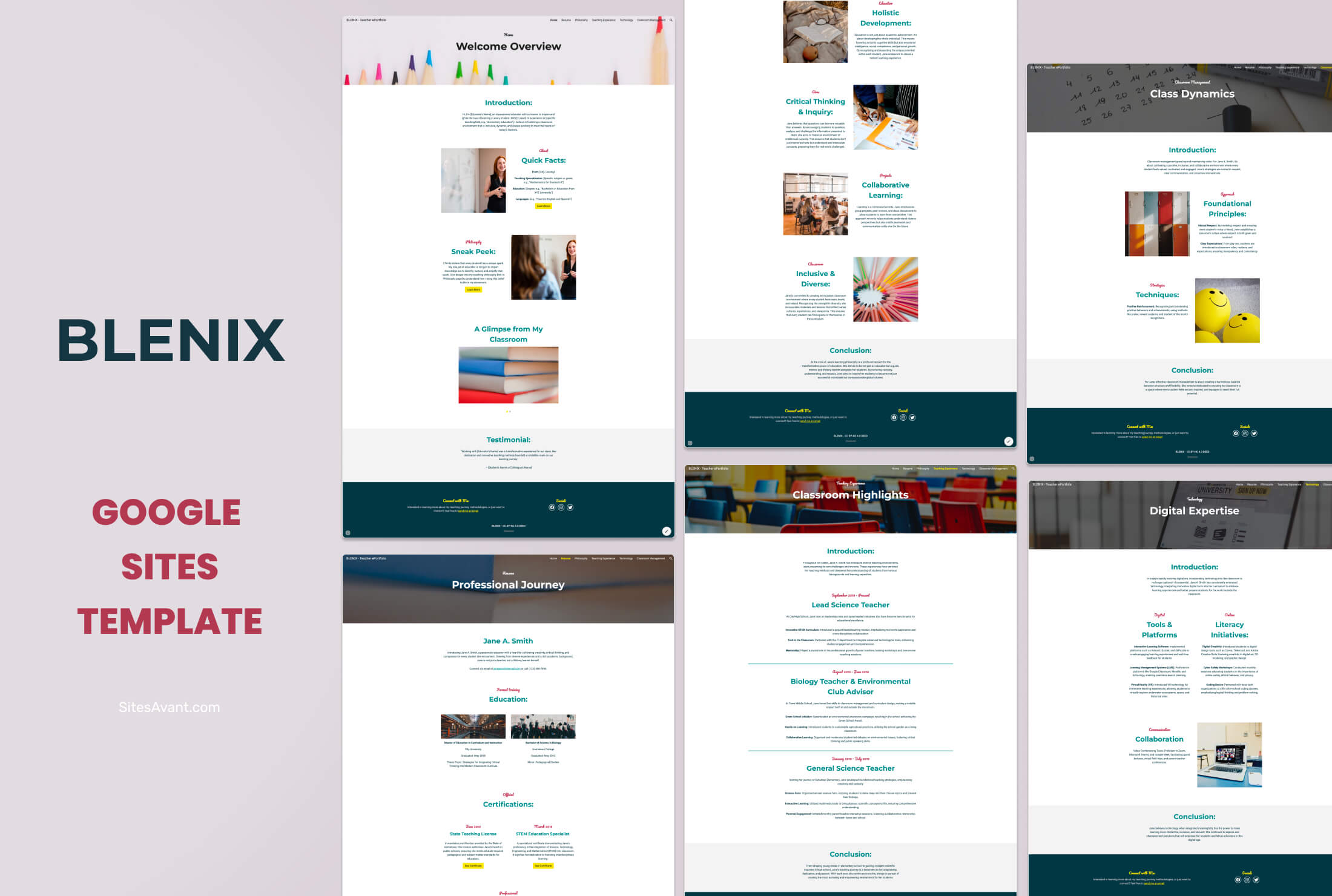 Educational Resources BLENIX: Teacher ePortfolio Template for Google Sites BLENIX is a free Google Sites template designed for teacher ePortfolios. Six sections cover your resume, philosophy, teaching experience, technology skills, and classroom management. View template →
 -
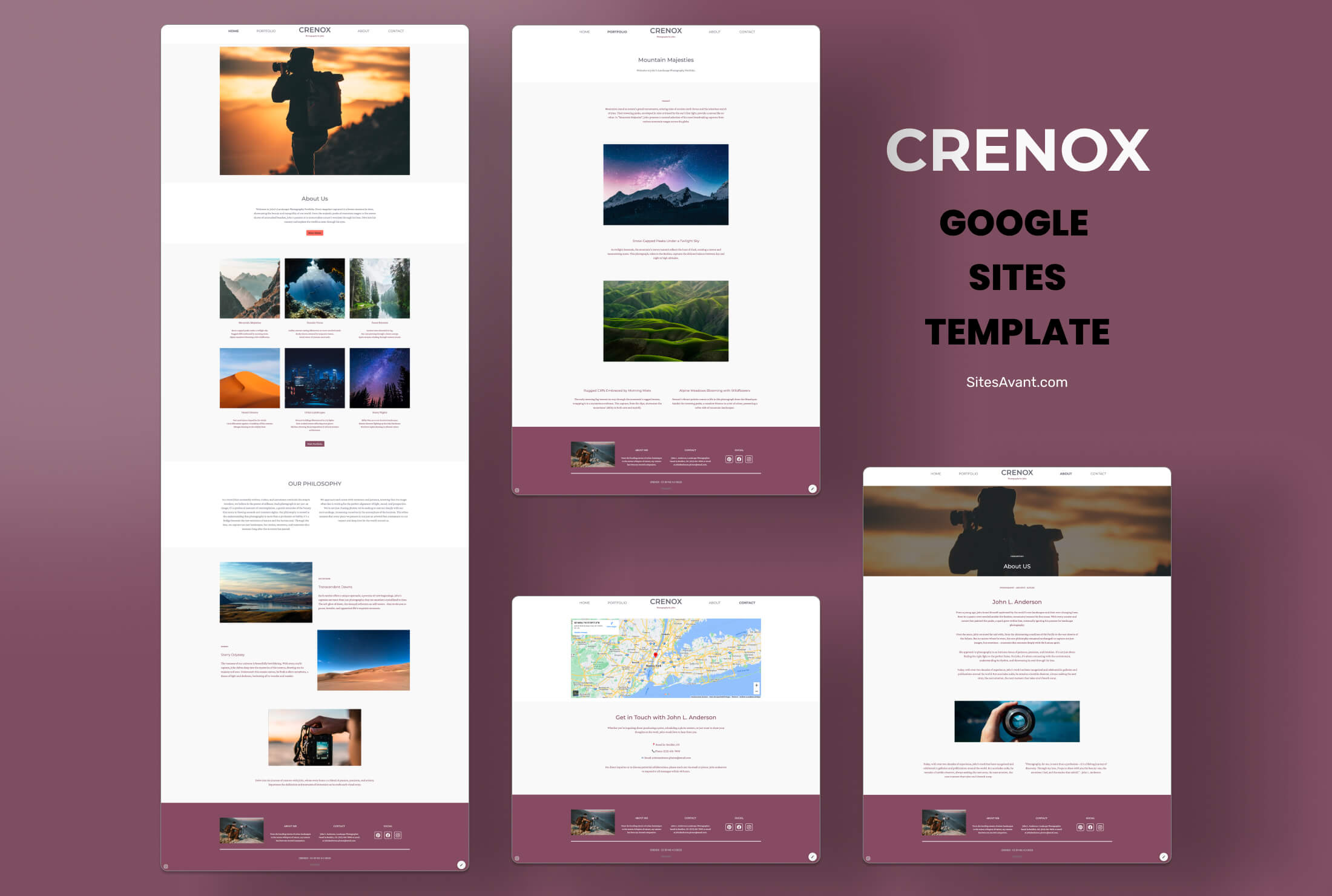 Photography Portfolios CRENOX: Google Sites Template for Photography Portfolios CRENOX is a Google Sites template built for photographers. Elegant, minimalist design with Home, Portfolio, About, and Contact sections. Free to use. View template →
 -
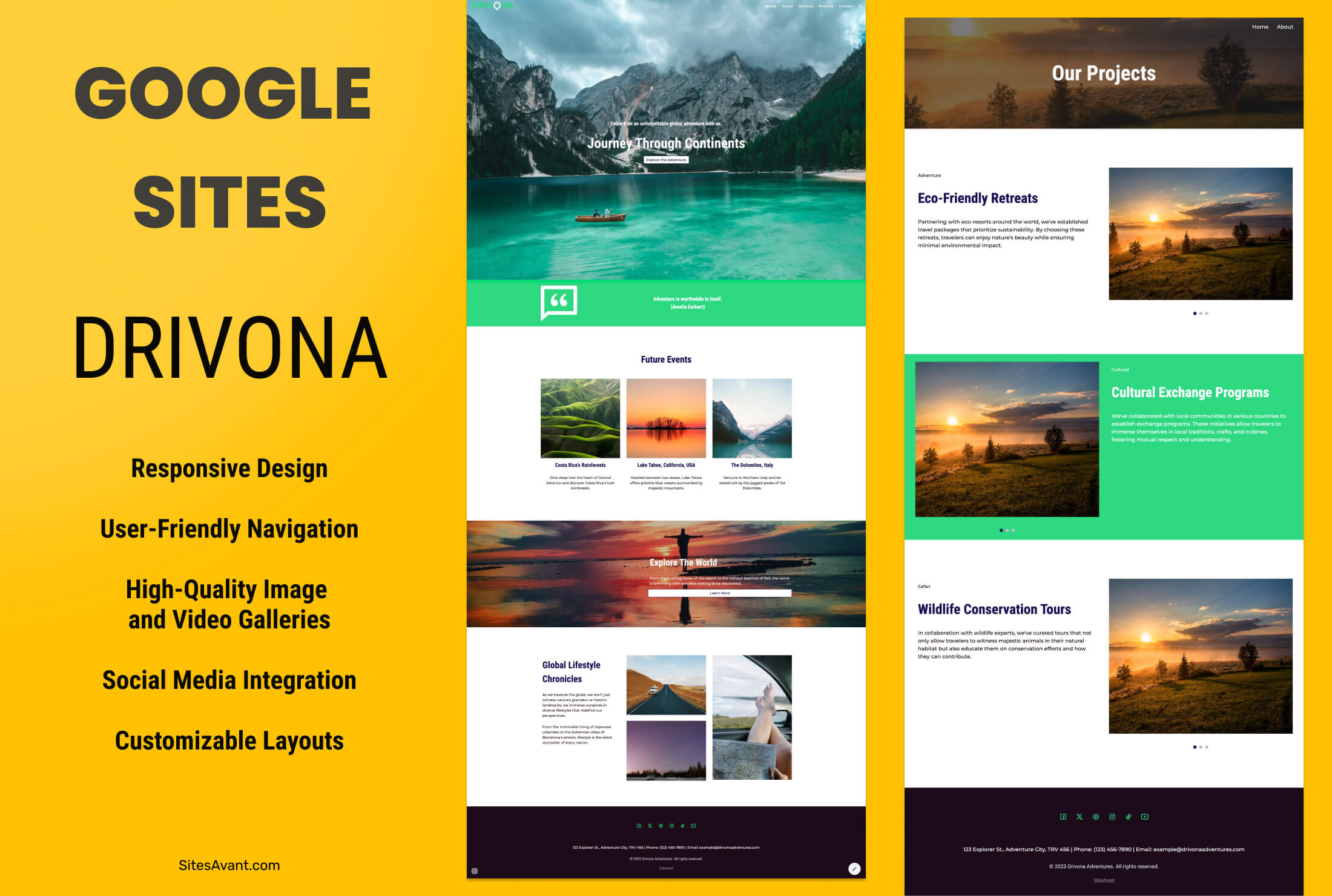 Medium Businesses DRIVONA: Free Travel Template for Google Sites DRIVONA is a vibrant Google Sites template designed for travel websites. Green and navy color scheme, large images, and pages for home, services, and contact. View template →
 -
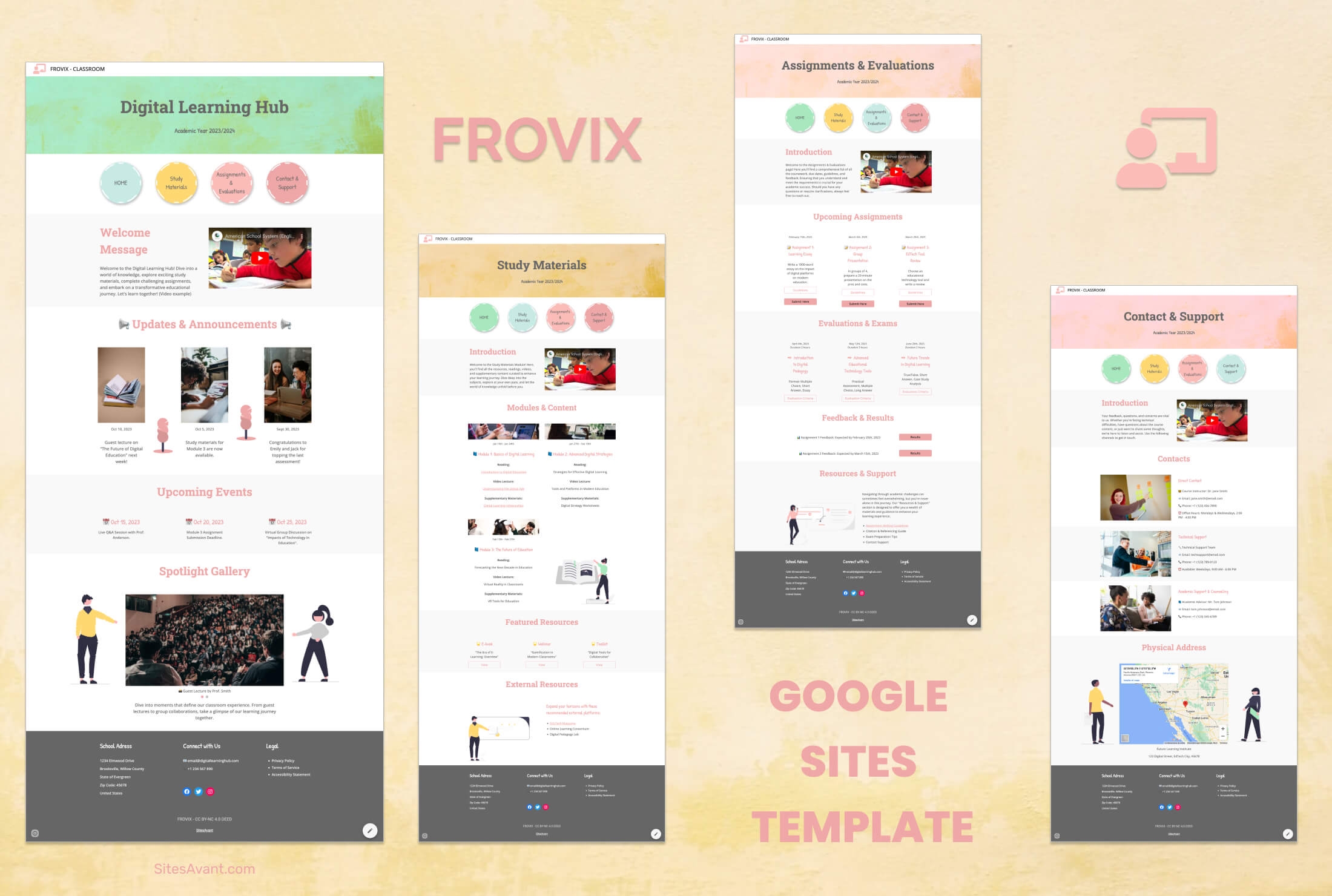 Schools and Colleges FROVIX: Digital Classroom Template for Educators FROVIX is a Google Sites template built for educators. Organized sections for class news, resources, assignments, events, and student support in one place. View template →