Google Sites Themes: 8 Free Custom Themes and How to Use Them
A theme in Google Sites decides how the whole site looks: the colors, the fonts for titles and text, the style of buttons, dividers and links, the menu colors and the width of the page. Google Sites ships a handful of pre-made themes, and since custom themes arrived you can also build your own or import one from another site. This page collects the custom themes we made for our free templates, with their exact colors and fonts, and explains how to bring any of them into your own site.
Free custom themes for Google Sites
Each of these themes was built inside Google Sites for one of our templates. The colors below are the ones the published demo uses and the fonts are the ones set in the theme, so what you see is what you get after copying the template. Click a card to open the template, its live demo and the download link.
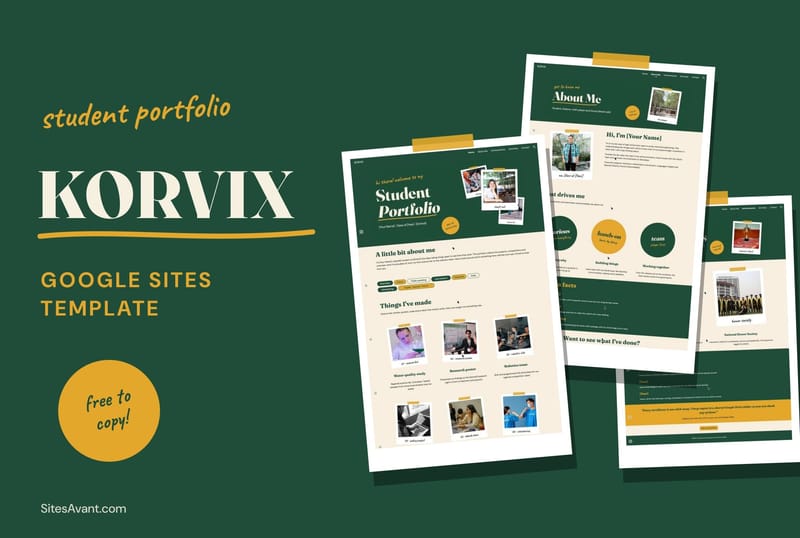
KORVIX Notebook theme: a notebook look for student portfolios
Bottle green and mustard on cream paper, with Fraunces in bold for titles. Each page opens with a green header and photos sit in polaroid frames with tape.
#1F4D3A#E3A82B#F6F0E1
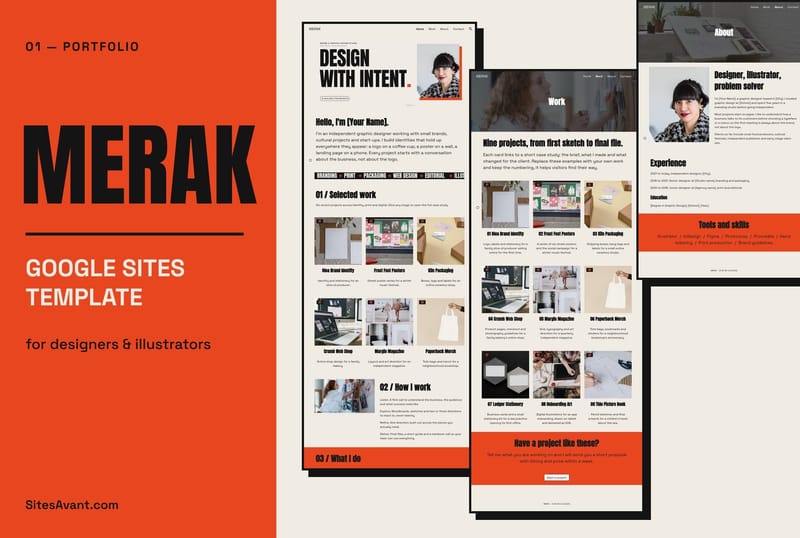
MERAK Editorial theme: an editorial look for designer portfolios
Black and a strong orange on warm cream, with Anton in capitals for titles and Space Grotesk for text. Cards have black borders and a hard shadow.
#141414#E8461E#F1ECE3
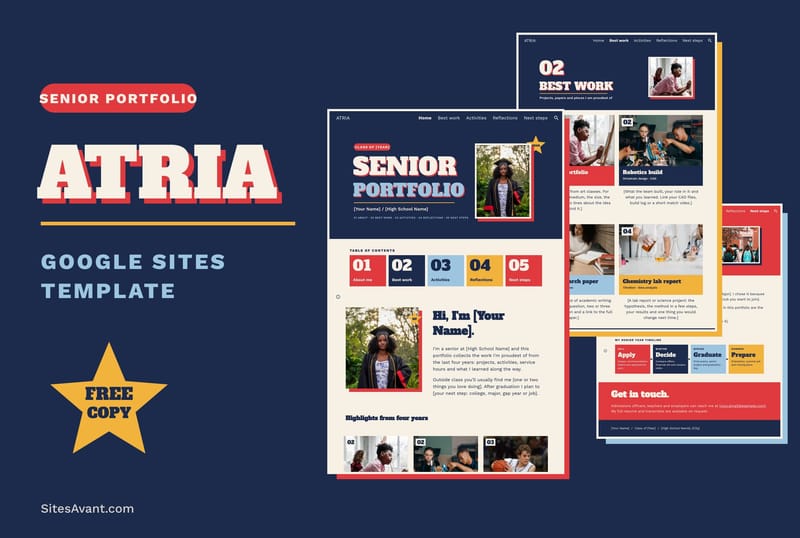
ATRIA theme: varsity colors for senior portfolios
Navy, red and cream taken from varsity jackets and school banners, with Alfa Slab One for titles and a gold star on the cover.
#1C2B4B#E0393E#F7F1E5
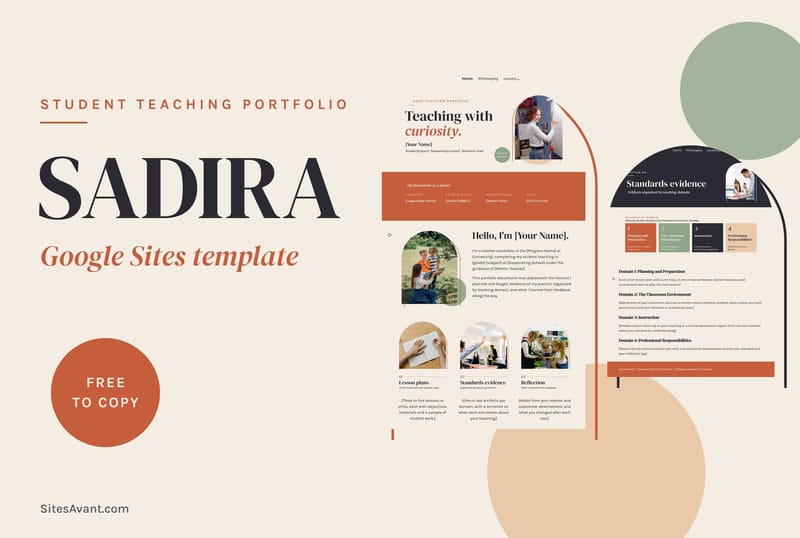
SADIRA theme: a warm classroom look for teaching portfolios
Terracotta and charcoal on cream, with DM Serif Display for headings, Karla for text and arch-shaped photo frames.
#2B2A33#C65D3B#F4EDE4
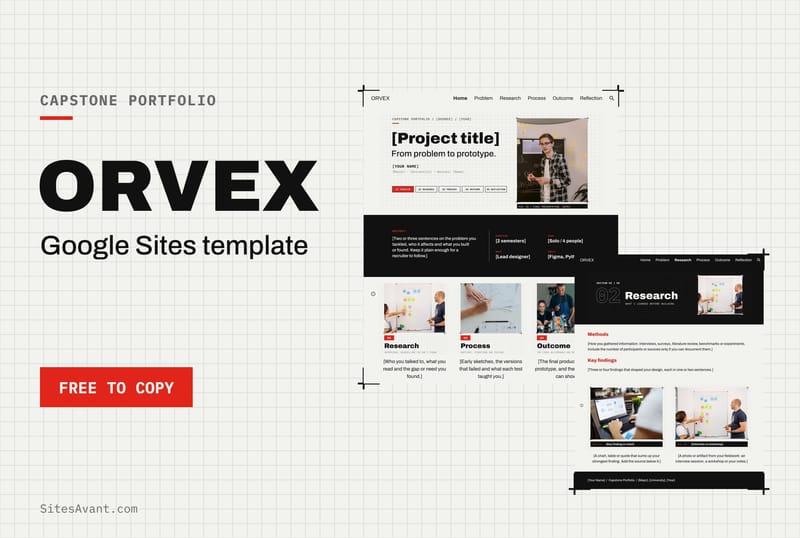
ORVEX theme: a design dossier look for capstone projects
Signal red and black on grid paper with crop marks, set entirely in Archivo so it reads like a project report.
#111111#E1251B#F2F2EE
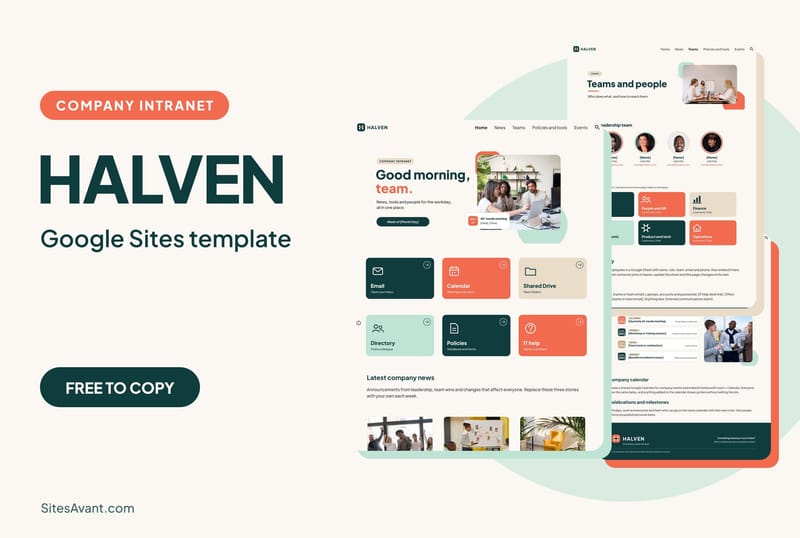
HALVEN theme: a calm teal look for company intranets
Deep teal with a coral accent on warm cream, set in Plus Jakarta Sans, with rounded cards that are easy to tap on a phone.
#0F3D3E#F26B4F#FBF7F2
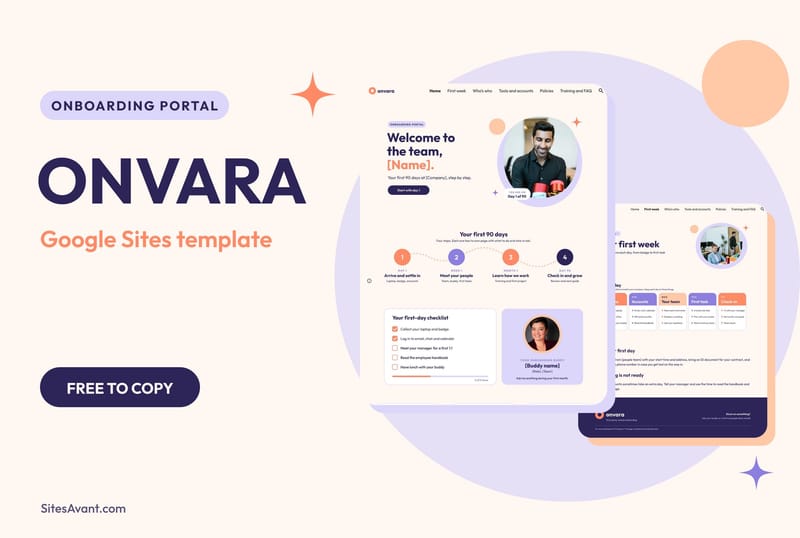
ONVARA theme: a friendly look for onboarding portals
Plum and peach on a soft cream background, set in Outfit, for a portal a new hire opens before the first day.
#2D2457#FF8A65#FFF8F2
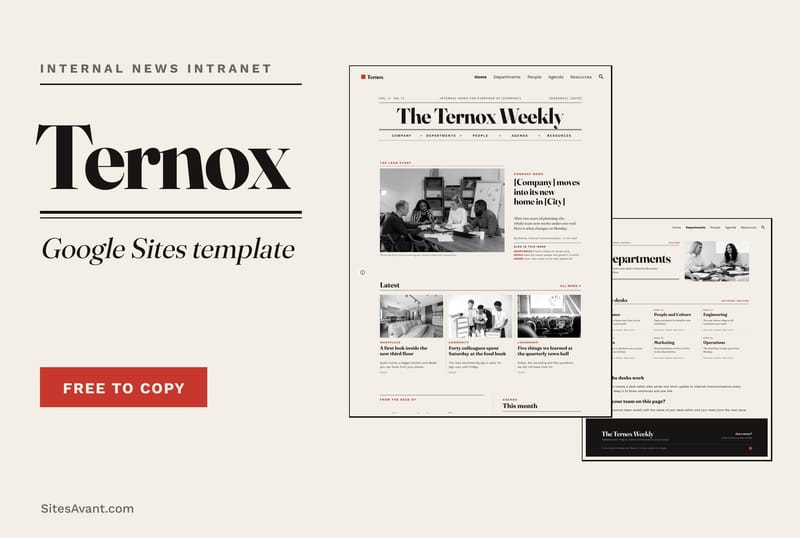
TERNOX theme: a weekly newspaper look for internal news
A serif masthead in Fraunces, black rules on cream, black and white photos and one red accent, with Work Sans for the text.
#161514#C8372D#F4EFE6
Pre-made Google Sites themes vs custom themes
When you open the Themes panel on the right of the editor you see two groups. Under Created by Google are the pre-made themes, such as Simple, Aristotle, Diplomat and Vision. You can pick a color variation and a Font style, but the layout of buttons, menus and headings stays as Google designed it. That is why so many sites built on Google Sites look alike.
Under Custom are the themes you create or import. According to Google's own help, a custom theme lets you:
- create different backgrounds and text colors and use them across the site;
- set the default text styles, from the title to small text;
- add brand images such as a logo and a favicon;
- style buttons, dividers, links and image carousels;
- change the site width (Default, Wide or Full) and show a colored frame around the page;
- change the color of the menu text and background.
All the themes on this page are custom themes, which is why they can use fonts such as Anton, Fraunces or Alfa Slab One and color combinations that the pre-made themes do not offer.
How to import a theme into Google Sites
Google Sites does not export themes as separate files. A custom theme lives inside a site, and you move it by importing it from that site. With our templates that takes two steps.
- Copy the template to your Google Drive. Open the template page, click the download button and choose Make a copy in the shared folder. Our guide to copying a template shows each step.
- Open the site where you want the theme. In the Themes panel, under Custom, select Import theme.
- Select the copy of the template you just made, choose its theme and click Import theme.
- Check the pages and click Publish when you are happy with the result.
The import brings the theme: colors, text styles, buttons and the rest of the settings listed above. The pages, texts and pictures of the template stay in the copy. If you want the layout as well, start from the copied template and replace its content instead of importing the theme into an empty site.
How to create a custom Google Sites theme
If none of the themes fits your brand, you can build one in a few minutes and refine it later.
- Open your site and click Themes in the right panel.
- Under Custom, select Create theme, type a name and click Next. You can add a logo and a banner image here.
- Pick a color palette. To choose the color of each part of the site yourself, select Customize colors.
- Choose the fonts and click Create theme.
To change it afterwards, select the theme under Custom and open More > Edit. From there you edit each text style, the navigation colors, the site width and the frame. A good way to start is to copy the colors of one of the themes above and change only the accent.
How to change the theme of an existing Google Site
You can switch themes at any time. Open the site, click Themes and select another pre-made theme under Created by Google or one of your themes under Custom. The editor applies it to every page straight away, and visitors see it once you click Publish. Your pages and text stay where they are, but look over the sections where you set a background by hand, because those keep the color you chose and may clash with the new palette.
Questions about Google Sites themes
Can I download a Google Sites theme?
Not as a file. What you download is a copy of a site, and the theme travels inside it. Once the copy is in your Drive you can import its theme into any of your other sites.
Can each page of a Google Site have its own theme?
No, a theme applies to the whole site. To give one page or one block a different look, change the background of its sections: point to a section and click Background on the left. A custom theme helps here, because it lets you prepare several background and text color pairs and reuse them.
Are these Google Sites themes free?
Yes. They come with our templates, which are free to use under the CC BY-NC 4.0 license: you can copy and adapt them for non-commercial use as long as you keep a link to sitesavant.com.
Browse templates
-
 Learn & Support How to Download the Template to Your Own Google Drive from sitesavant.com Step-by-step guide to transfer a Google Sites template from sitesavant.com to your own Google Drive and start editing it. Read guide →
-
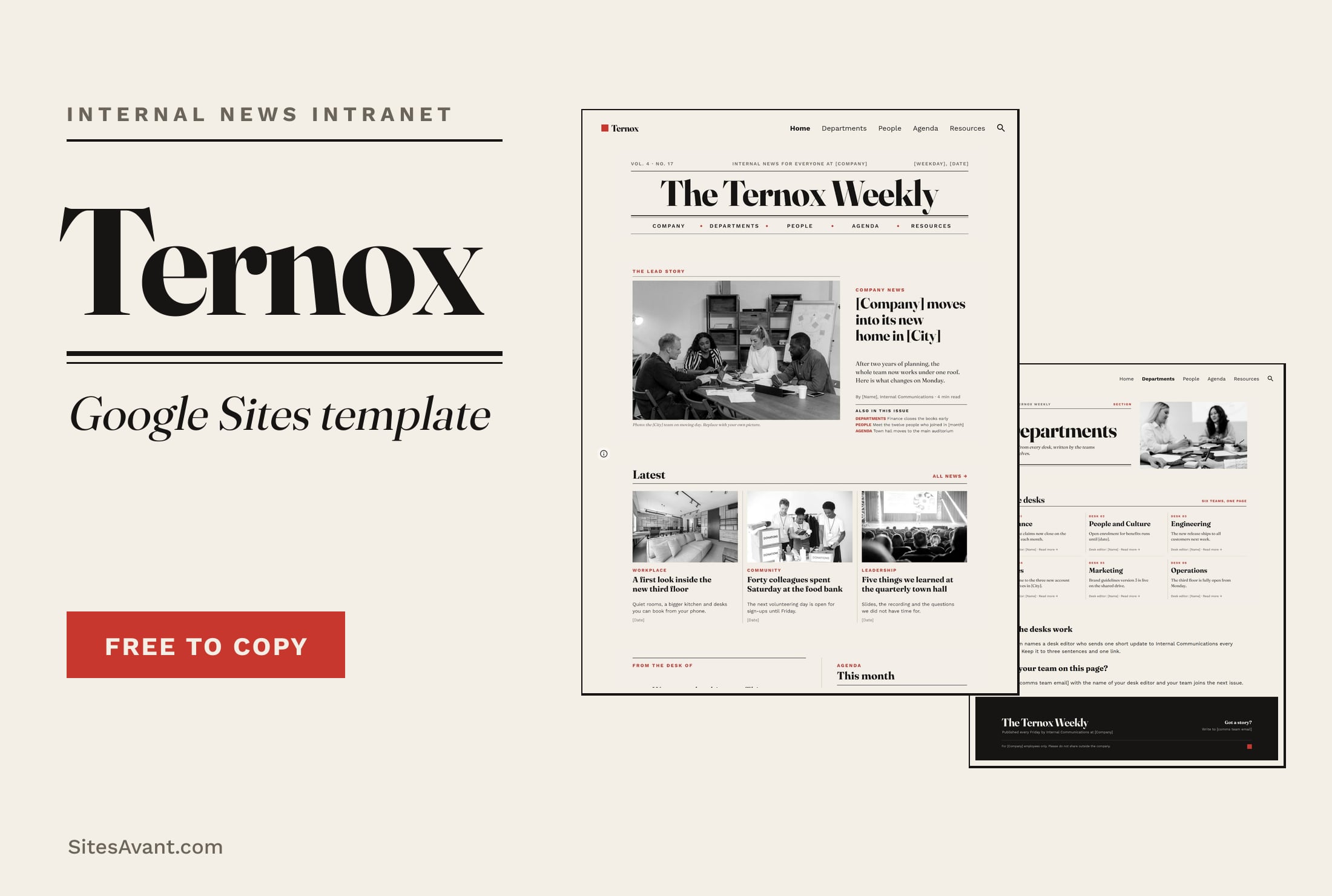 Google Sites Intranet Templates TERNOX: Google Sites Internal Communications Intranet TERNOX is a free Google Sites intranet template for internal communications, designed like a company newspaper: lead story, departments, people and agenda. View template →
-
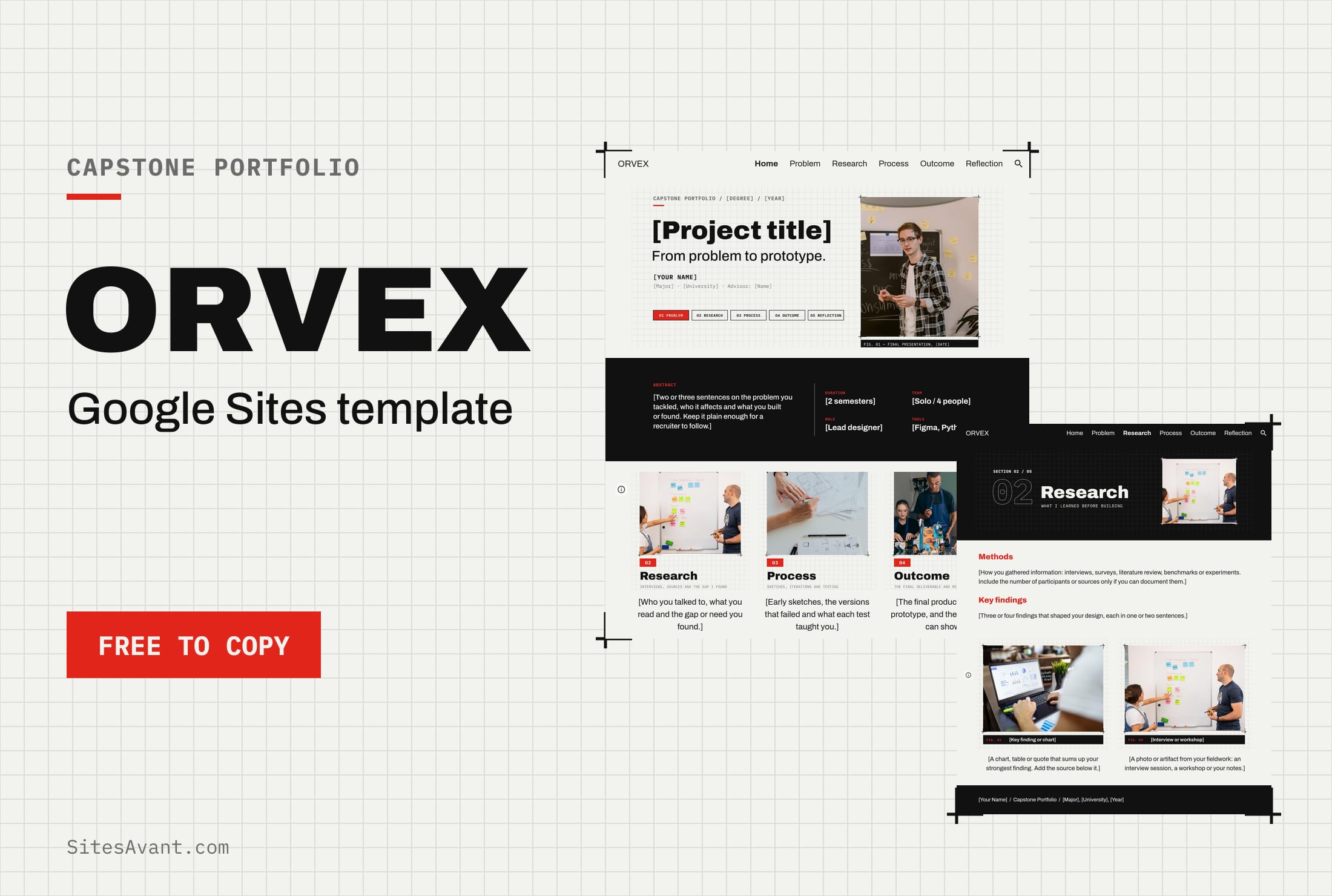 Google Sites ePortfolio Templates ORVEX: Google Sites Capstone Portfolio Template ORVEX is a free Google Sites capstone portfolio template for college students: problem, research, process, outcome and reflection, with a live demo. View template →
-
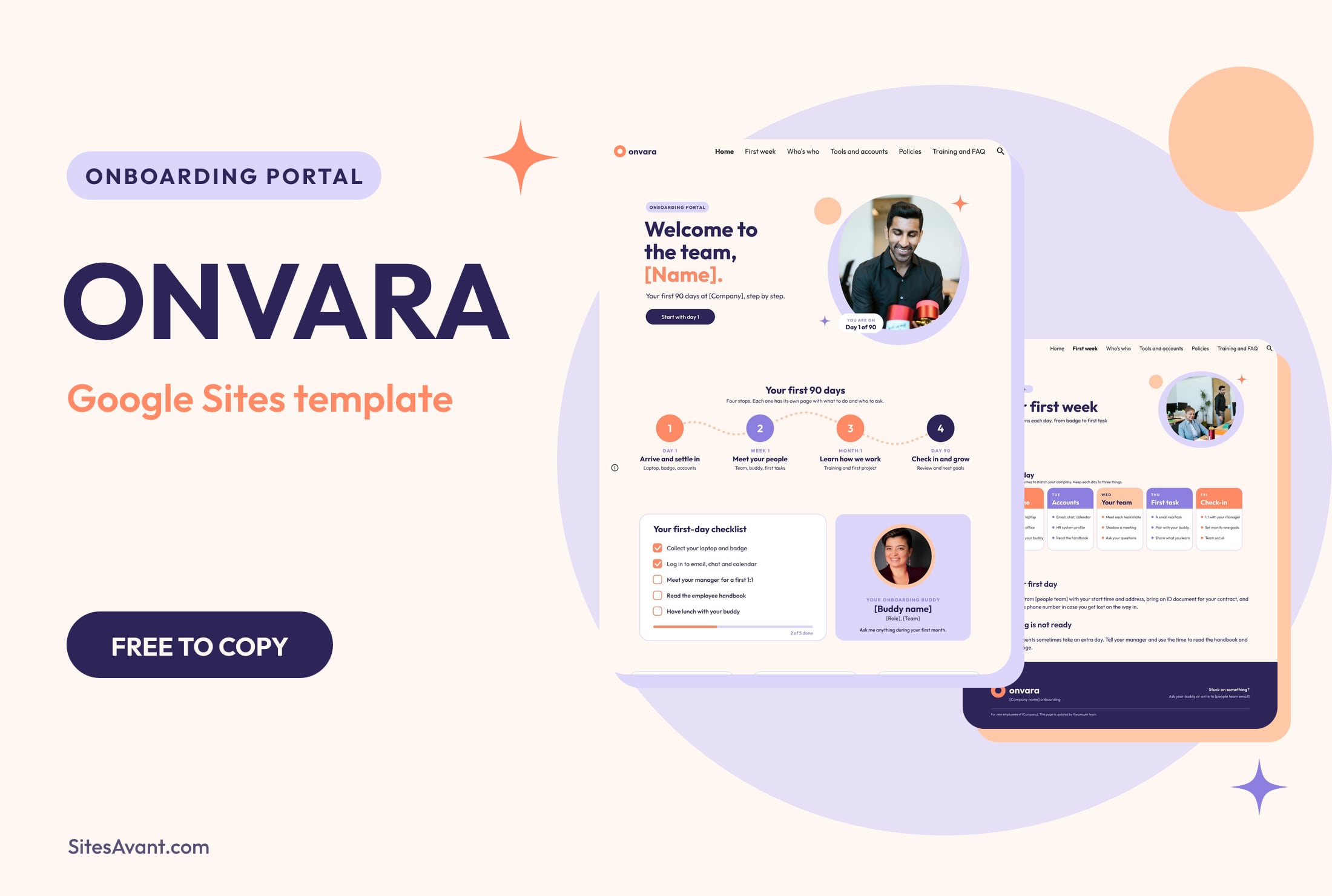 Google Sites Intranet Templates ONVARA: Google Sites Employee Onboarding Portal Template ONVARA is a free Google Sites employee onboarding portal template: a 90-day roadmap, first-day checklist, buddy, tools, policies and training. Live demo included. View template →